
The funscript editor in FunGen
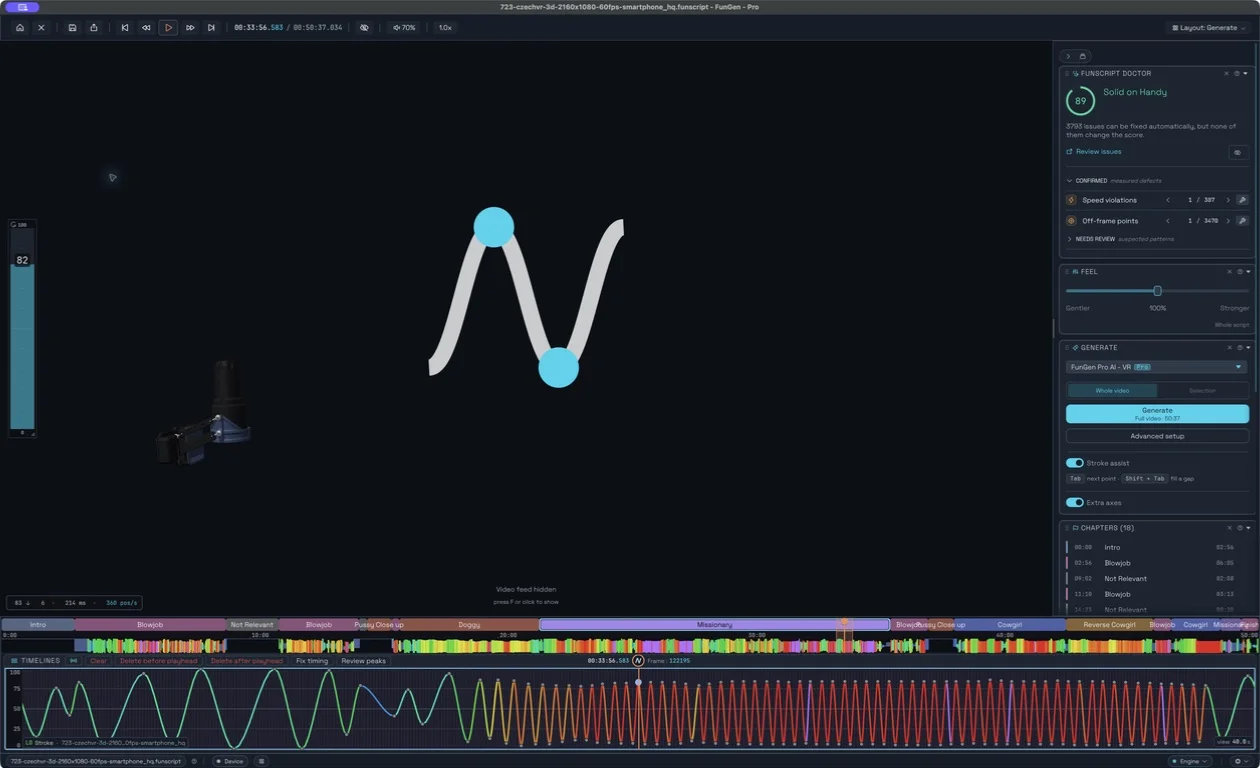
FunGen's free editor lets you open a funscript, adjust its timing and positions against a video, check the result, and export it for playback. You can edit by hand or refine an AI-generated starting track.
This walkthrough covers the FunGen 2 desktop app. For quick browser edits, see the Online Studio guide.
Updated 11 September 2026 · FunGen 2.6.3
Open the video and matching funscript
Put the local video and its script together with matching base names, then open the video. FunGen looks for the sibling script automatically. You can also open a funscript explicitly from the File menu. If you are learning without a video, open the neutral three-second example and inspect its four points.
Before editing an existing script, save a copy under a new name. Check that the video's duration and edit match the script. A trimmed introduction or a different cut can make good points appear mistimed.
Make one small, reversible edit
- Move the playhead to a short section and zoom until individual points are easy to distinguish.
- Select the point or time range you want to change. Confirm the active axis before editing a multi-axis script.
- Move a point horizontally to change its timing, or vertically to change its position. Review the movements on either side, because both are affected.
- Play that section again. Use Undo if it is worse, then try a smaller adjustment.
For example, if a stroke begins too early but the next one is correct, adjust the local points. Shifting the entire script would also move every section that was already synchronized.
Choose the transform for the problem
| Problem | Useful operation | Check afterwards |
|---|---|---|
| All motion in a selection is too deep | Amplitude or range adjustment | Transitions into and out of the selection |
| Small, unwanted position changes | Smoothing | Whether deliberate short movements disappeared |
| Motion asks for more speed than the device supports | Speed limit | Timing and depth of the resulting strokes |
| A constant timing error | Timing offset | Synchronization at the start and later in the video |
Work on a selection first. Preview a transform where available and compare before and after. Once a sequence of operations works for your material, save it as a pipeline rather than repeating the same manual cleanup.
Use the Doctor as a review tool
The Doctor highlights issues including speed violations, off-frame points, gaps and jitter. Its device-aware score helps you find sections to inspect. Review the listed problem and proposed fix; a higher score by itself does not prove that the edited motion matches the video or your preferences.
Chapters and bookmarks help organize longer projects. Check transitions at chapter boundaries as well as the centres of individual sections. In a multi-axis script, review and route each track deliberately; importing extra axes does not mean every connected device can reproduce them.
Save a project and an interoperable motion file
- Save project: keep the editable FunGen workspace in its project format for continued work.
- Save funscript / Save funscript as: write the motion file used alongside the video. Keep a distinct filename for an alternate edit.
- Export multi-axis funscript: export the axes in the format selected under Preferences → Export. Separate companion files and combined formats have different player support.
Open the exported result again and check a few edited timestamps. Keep the companion files with their main script. Saving a motion file and saving your entire editable workspace serve different purposes.
Shortcuts and your next step
Use the shortcut labels shown by your menus and the keyboard settings for your platform; assignments can be customized. In the current app, Stroke assist can propose the next point with Tab, while manual point editing remains available. Verify the proposal before accepting a longer sequence.
The editor is free. Full-video Pro AI generation and other Pro capabilities have separate access rules, listed on Pricing. Continue with AI generation, playback, or the deeper Studio overview.
For a quick check, open the free online funscript editor: inspect a local timeline, review basic Doctor findings and preview edits before downloading a copy.